
Updates
View all updates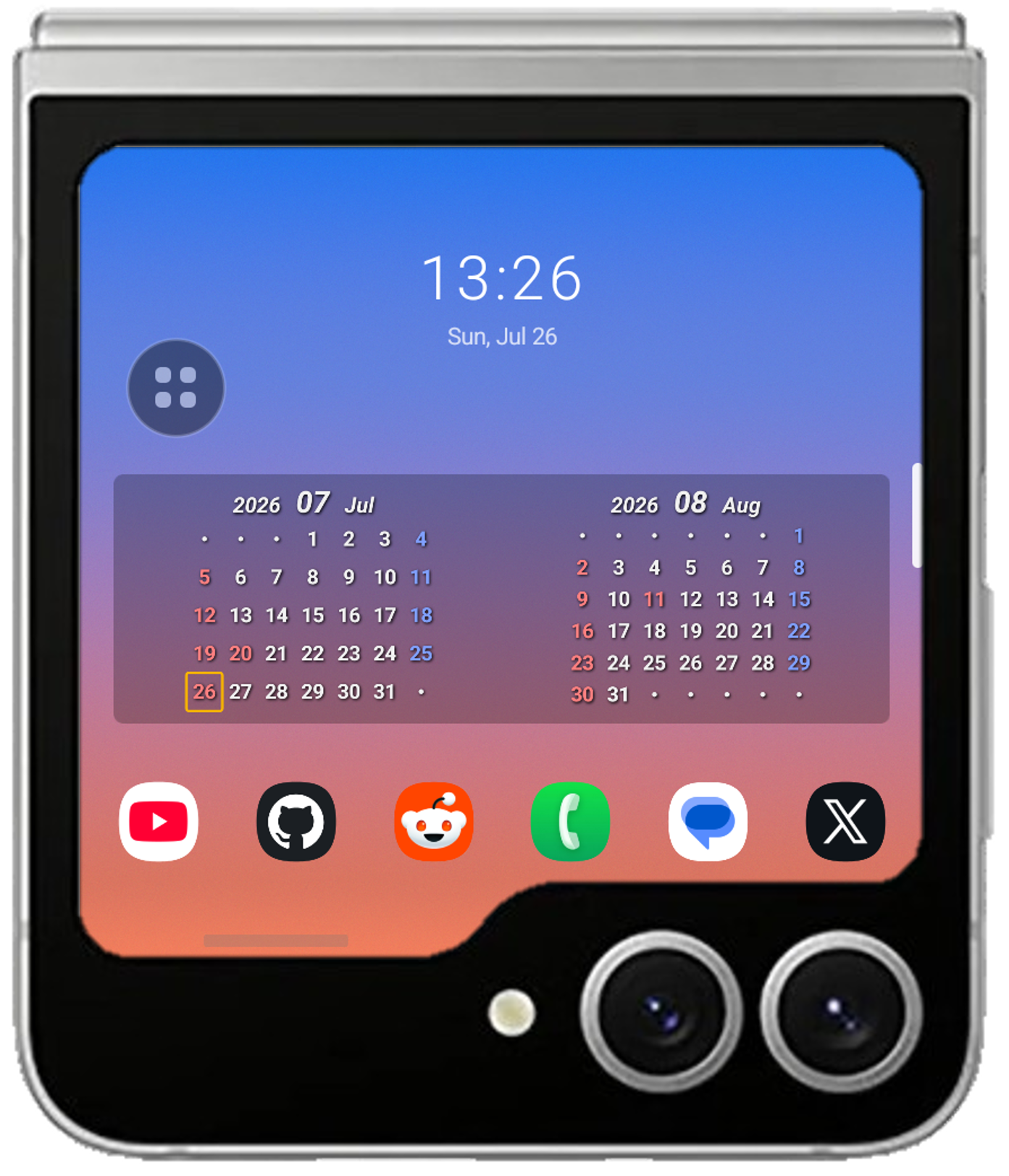
Turn the Galaxy Z Flip cover display into a home screen
A launcher that lets you freely place a clock, apps and widgets on the small “cover display” you see when the phone is folded. Reach your frequently used apps and settings without opening the device.
- Galaxy Z Flip5 / Z Flip6
- Android 16
- One UI 8.5
- Japanese / English
The app has also been verified on the Galaxy Z Flip7 and Z Flip8 using Samsung Remote Test Lab, though the cover display differs in size, so the layout may not render correctly.
Features
Build your own home screen
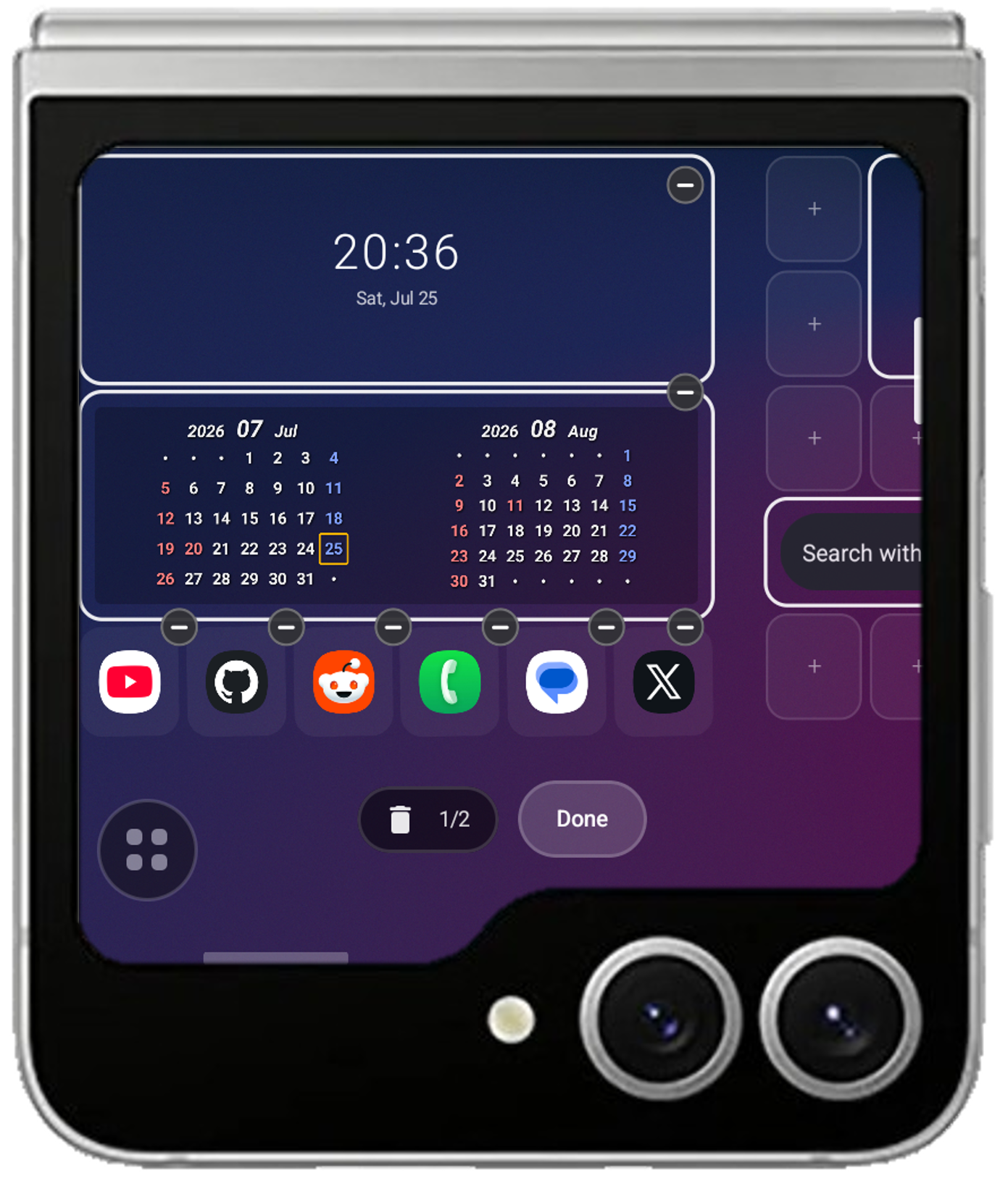
Arrange apps, widgets and a clock however you like on a 6×5 grid. Long-press to enter edit mode and fine-tune the layout on the spot.
- Clock supports 12/24-hour display, date format, and a tap action to open any app
- App slots: up to 4 on the free version, unlimited with Premium
- Widget slots: up to 1 on the free version, unlimited with Premium (multi-cell sizes supported)
- Drop one app onto another to create a folder; add a second page and beyond
- Edit mode lets you reorder, resize, remove items, and add or delete pages
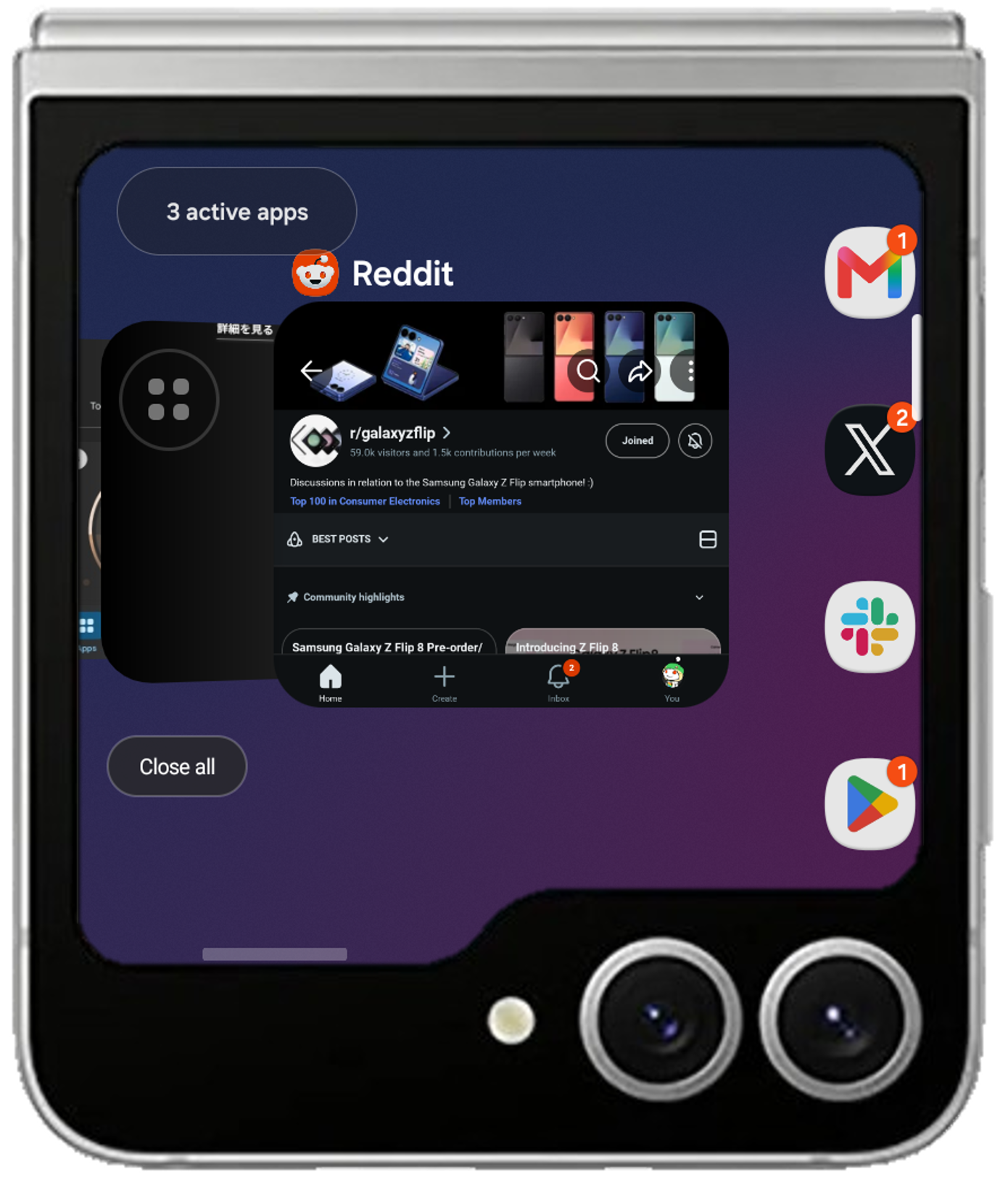
Find and switch between apps
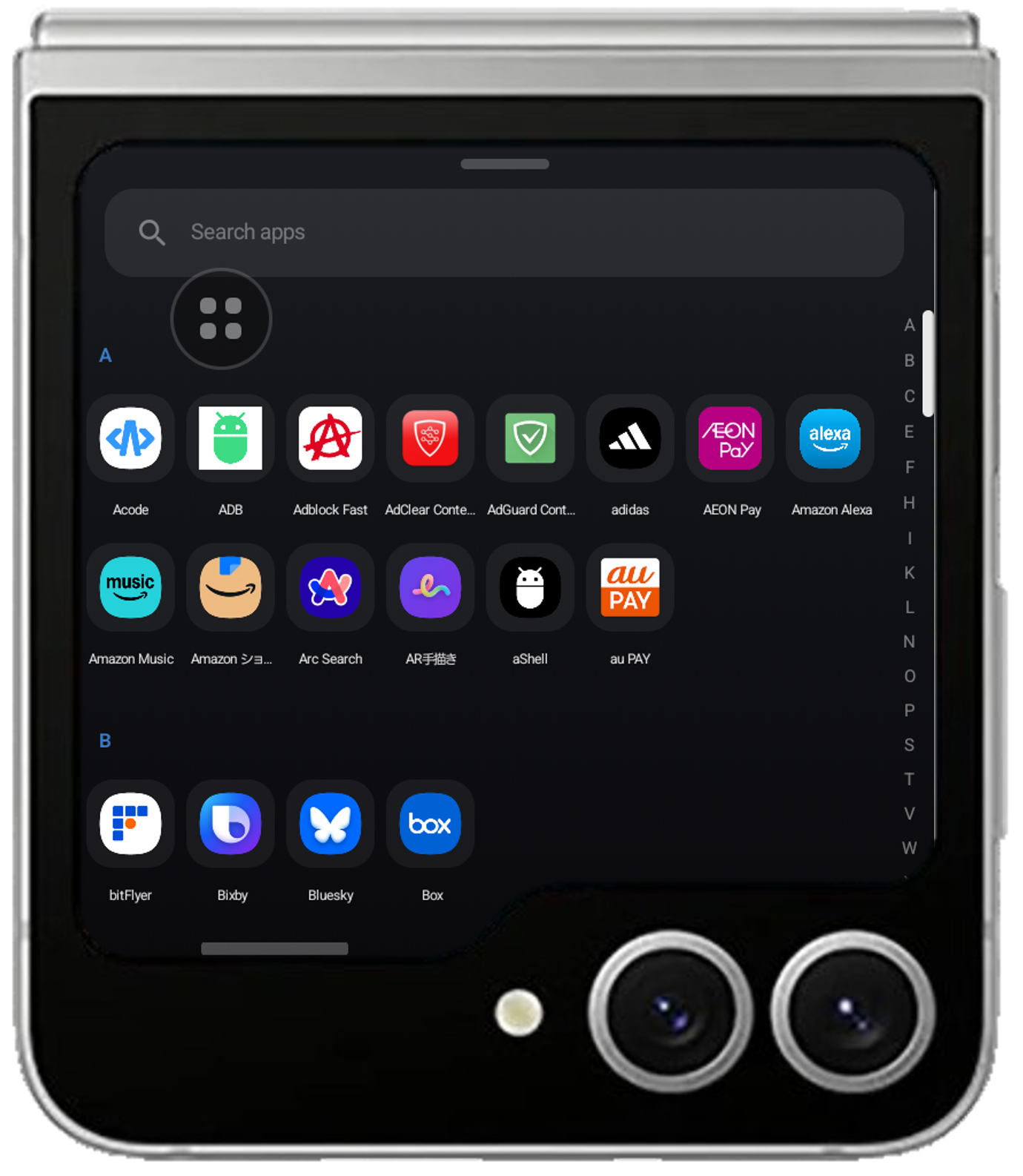
Swipe up for all apps, swipe left for running apps. Both are one gesture away from the home screen.
- Find apps quickly with keyword search and an alphabetical index
- Pin frequently used apps to the top as favourites
- Switch to running apps individually, or close them all at once
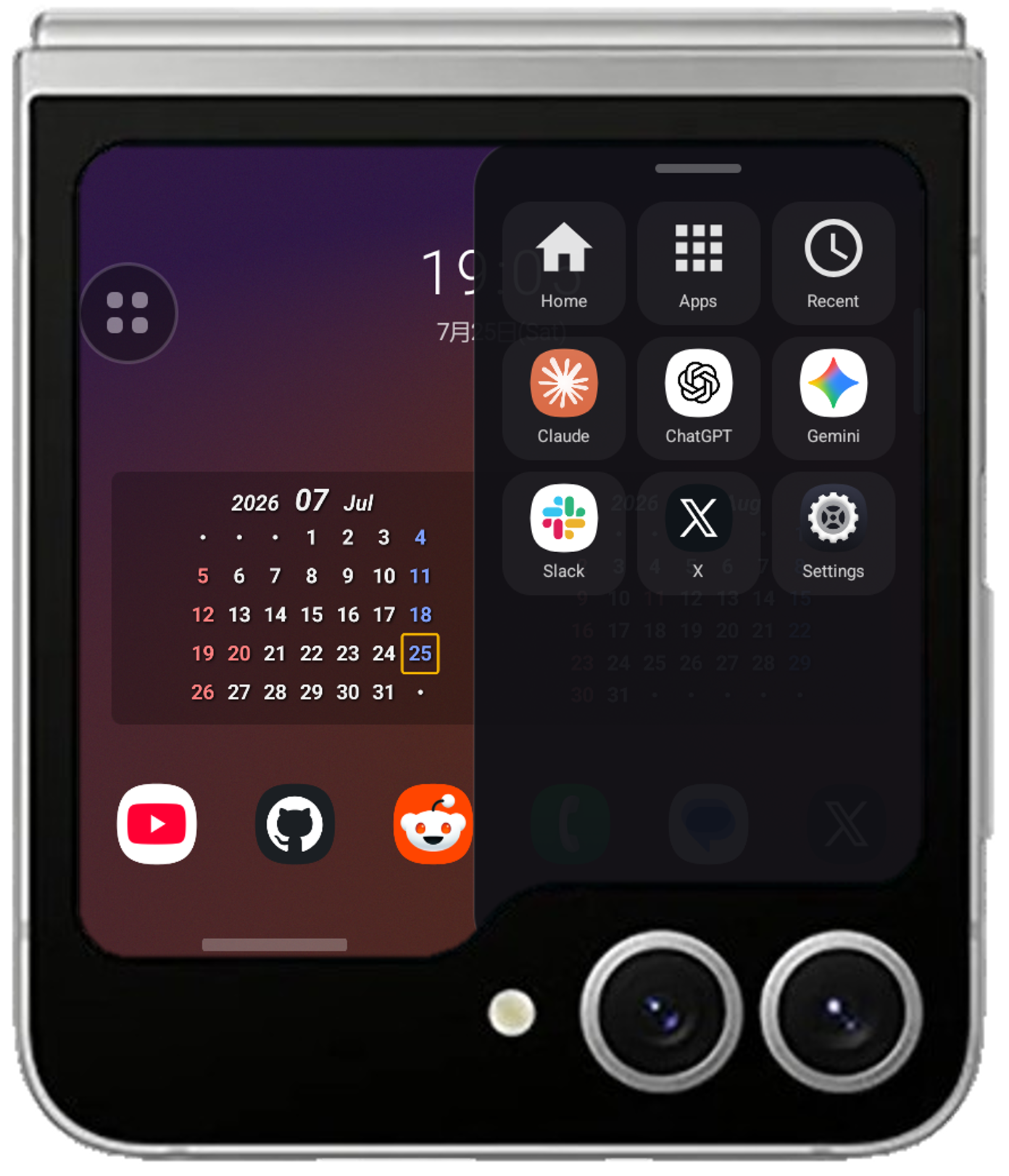
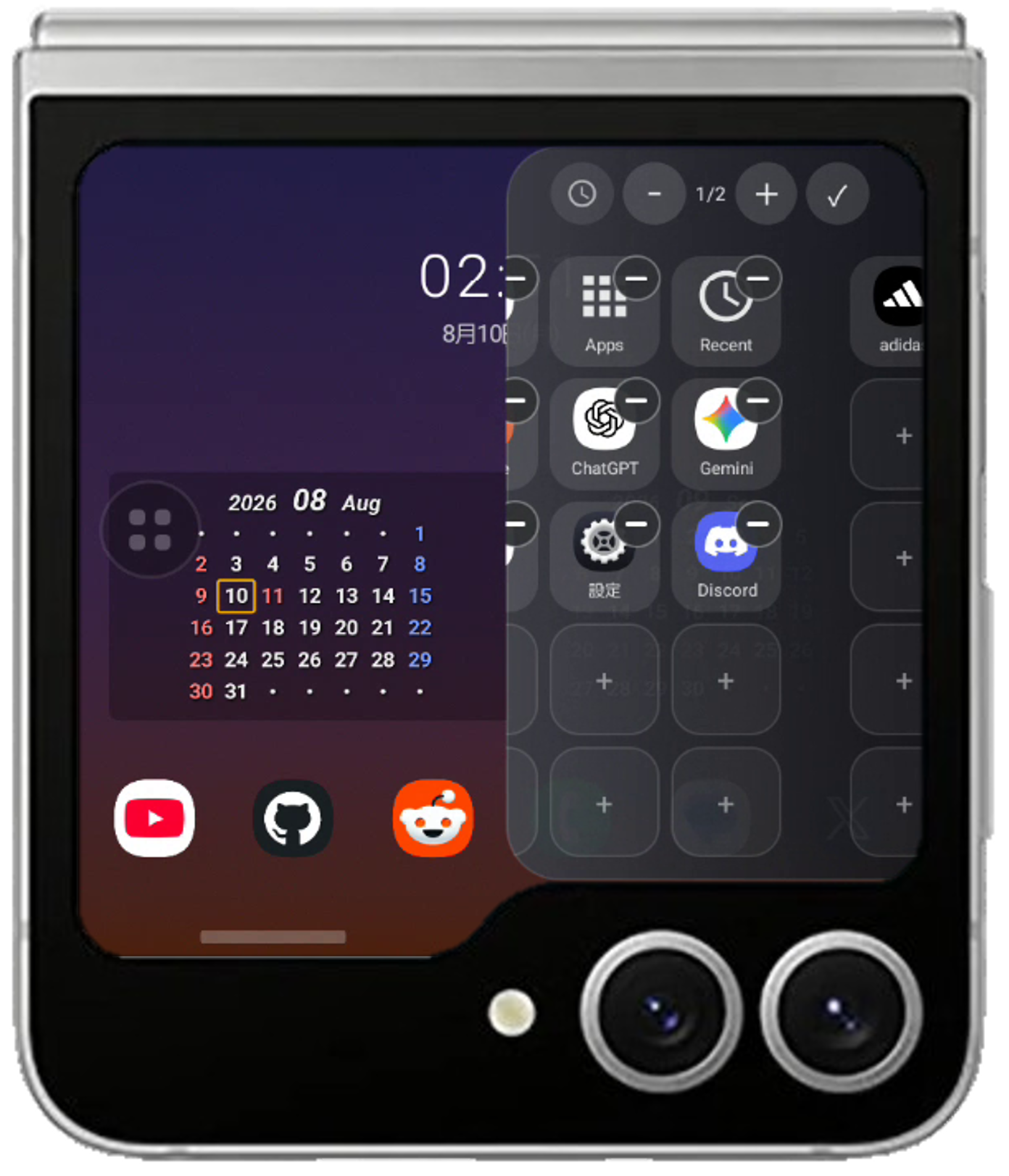
Slide PanelPremium
Pull it out from the screen edge to reach your apps instantly, even while using another app.
- An app tray you pull out from the screen edge
- Long-press to rearrange the panel contents by dragging
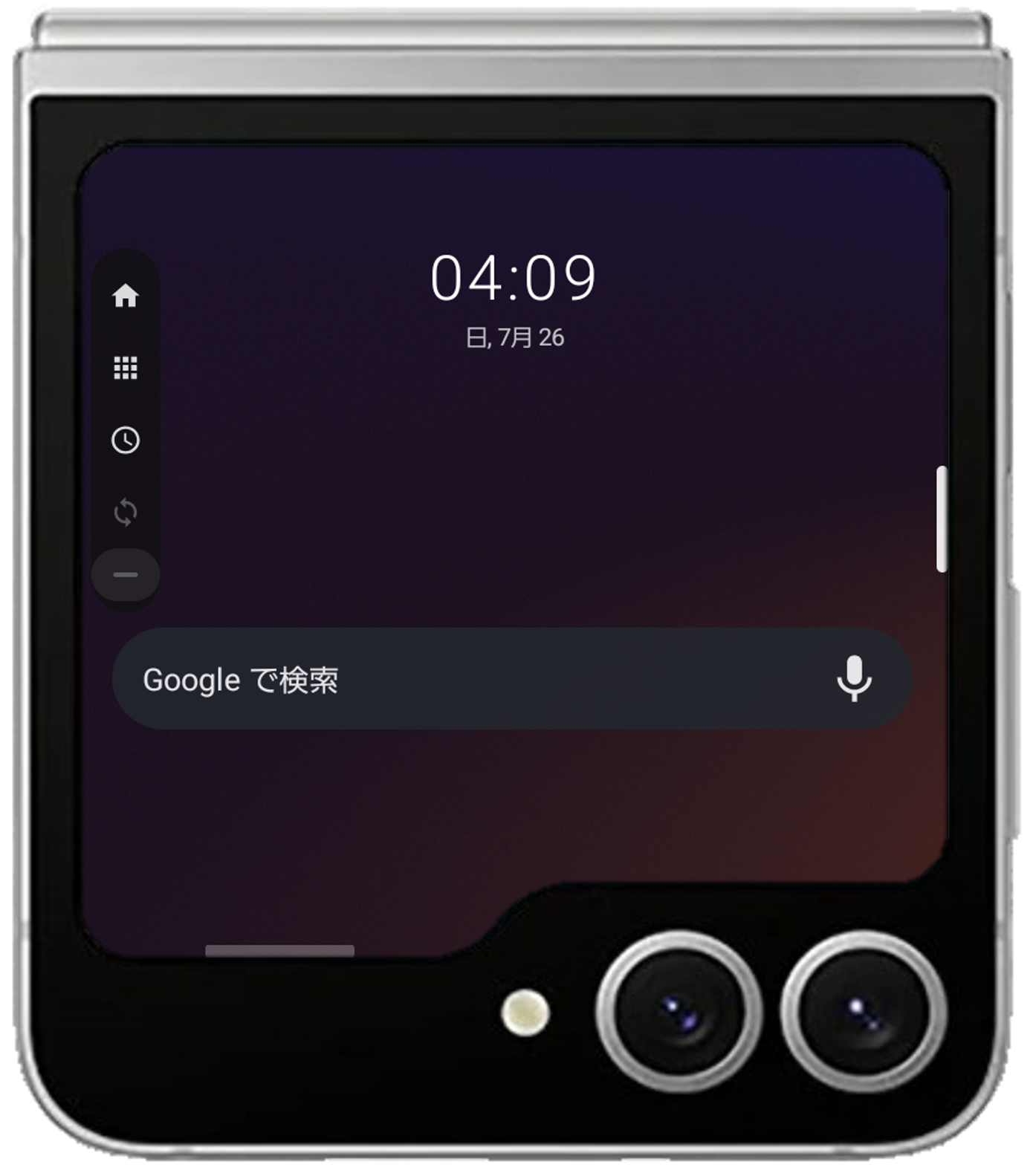
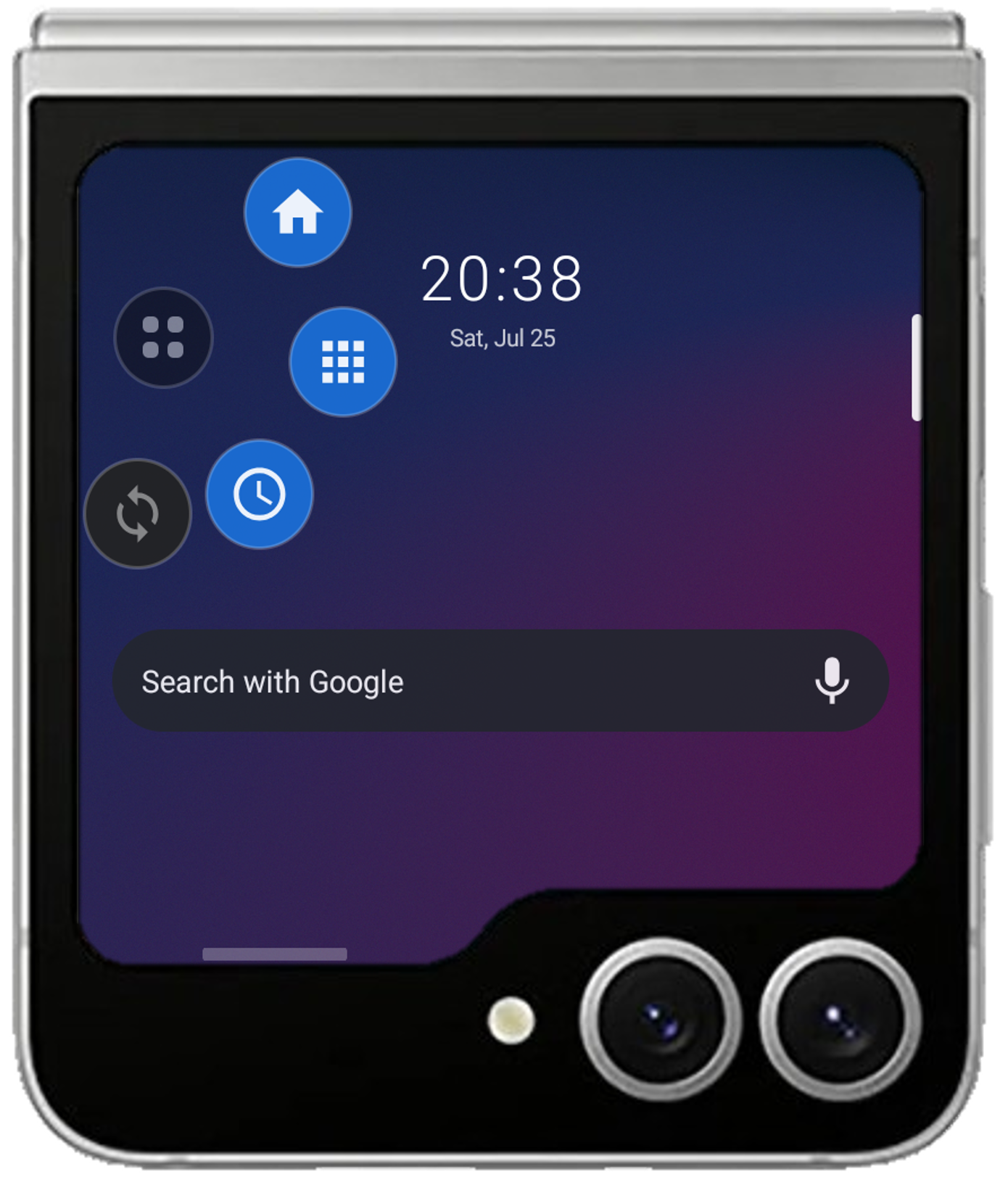
Overlay modes
Choose between two navigation styles. Return to the home screen or another app instantly, even mid-task.
- Pill: a simple bar-style navigation
- Smart: shortcuts fan out from a floating button
- Both are customisable
Settings and customisation
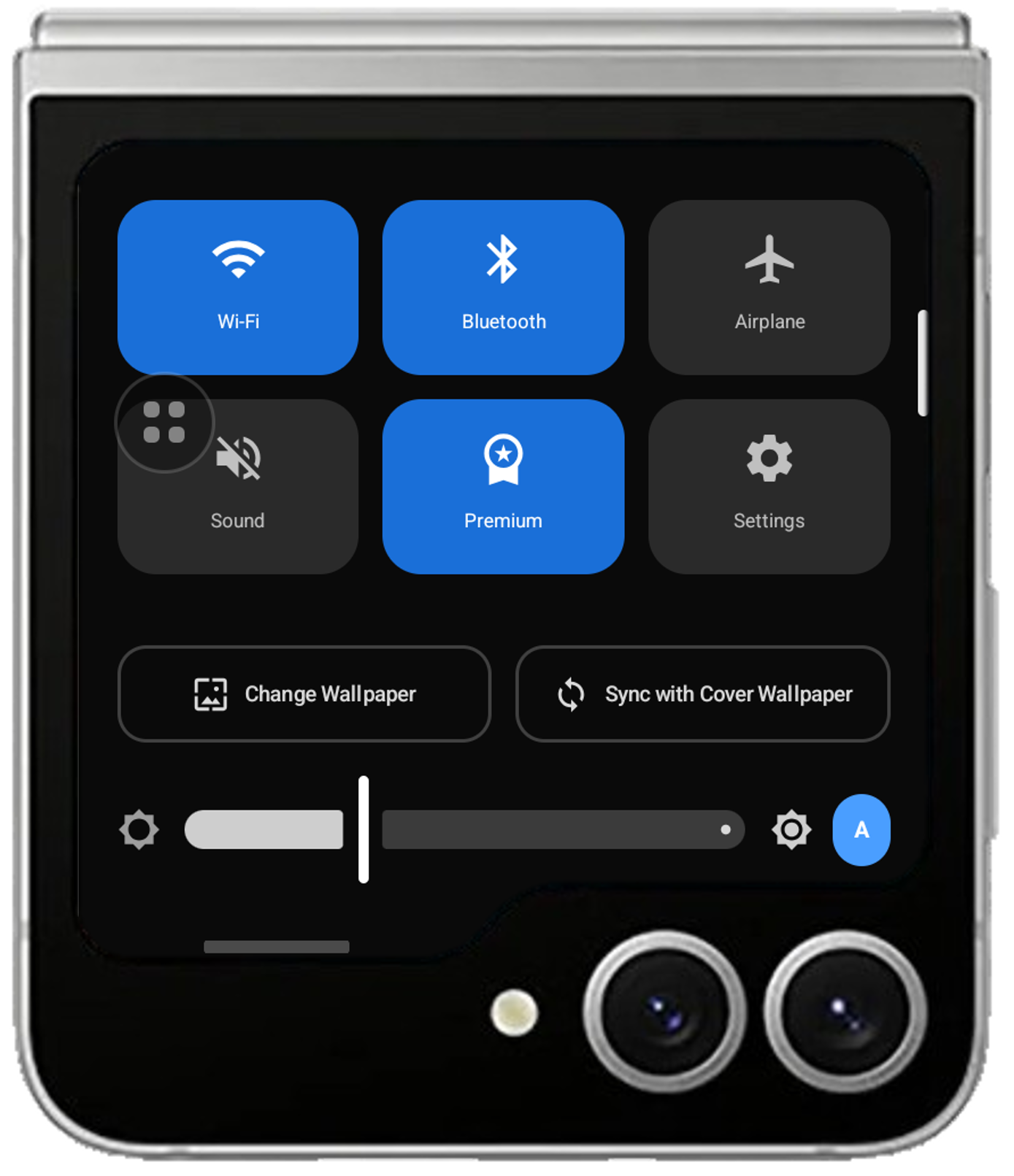
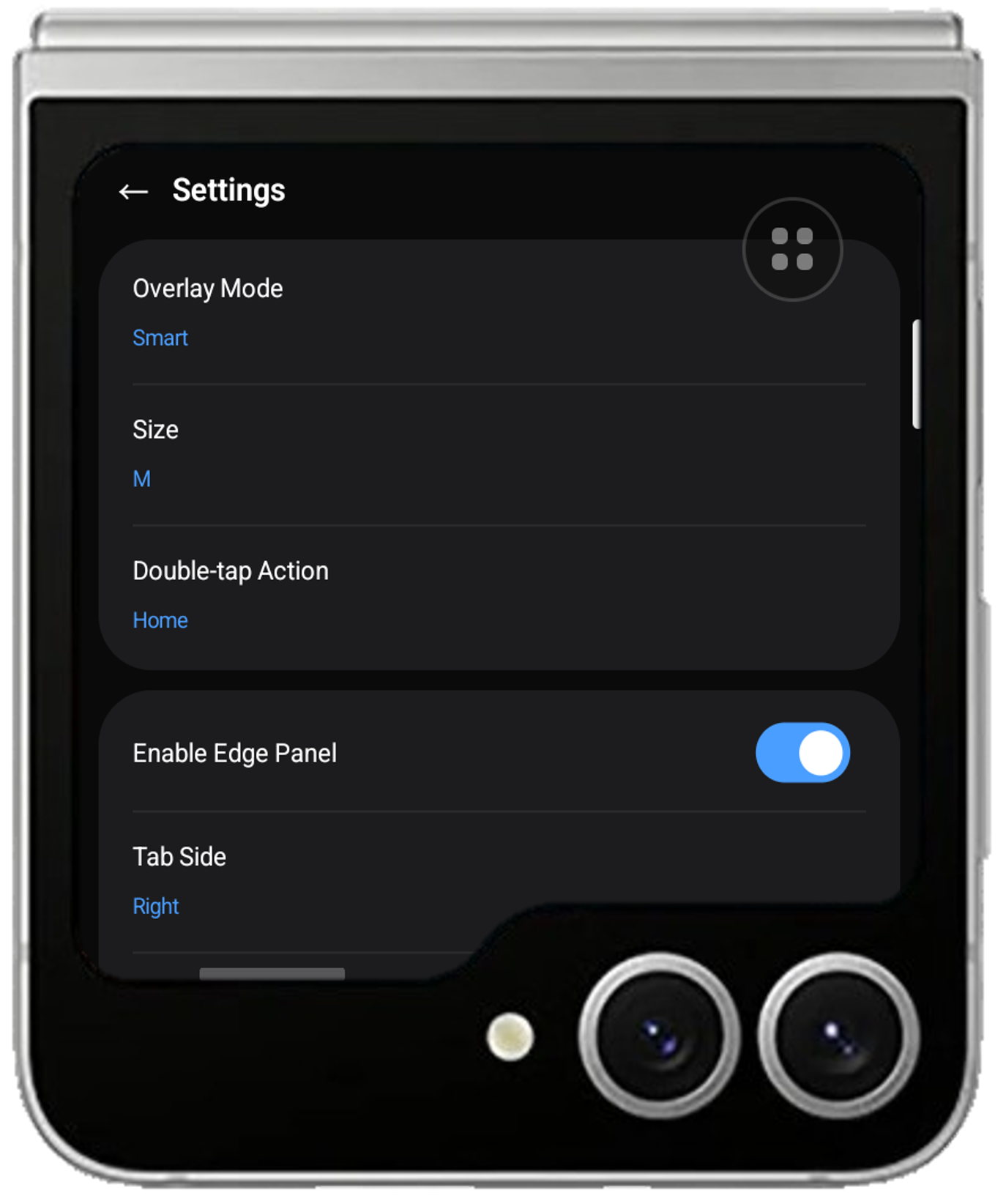
Everyday toggles live in Quick Settings; finer behaviour is in the settings screen. Tune it to how you use your phone.
- Toggle Wi-Fi, Bluetooth, aeroplane mode and sound with one tap
- Pick a wallpaper with built-in cropping, or sync it with the cover display wallpaper
- Choose the overlay style: bar-shaped “Pill” or circular “Smart”
- Adjust size, double-tap action, screen-edge trigger width, column count and more
Basic gestures
A swipe from the home screen brings up each screen right away.
Before you get started
Here is what the app does and does not do. Please read the second point in particular before buying Premium.
-
This app does not replace the cover display itself
It does not replace or extend the stock Galaxy cover display (the screen with the clock and widgets). It does not change your device settings or the system, and the stock cover display stays as it is.
That said, it is not limited to when the app is open. Even while you are using another app, the overlay drawn on top of the screen (the Pill and Smart menus) gives you the home screen, the App Drawer, recent apps and screen rotation. The Slide Panel launches the apps you have registered, right where you are.
You can choose which items appear in the overlay, so you can keep just the actions you actually use.
-
Not every widget is guaranteed to display correctly
Widgets are loaded from the apps that provide them. The cover display is considerably smaller than a normal home screen, so depending on the widget the layout may break, the content may not fit, or it may not appear at all. Whether a widget works depends on how that widget was built, so we cannot guarantee it.
The free version lets you place one widget. Please confirm that the widget you want displays correctly before considering a Premium purchase.
Free and Premium
The free version includes the core home screen features. Premium removes layout limits and unlocks the Slide Panel and main screen mirroring.
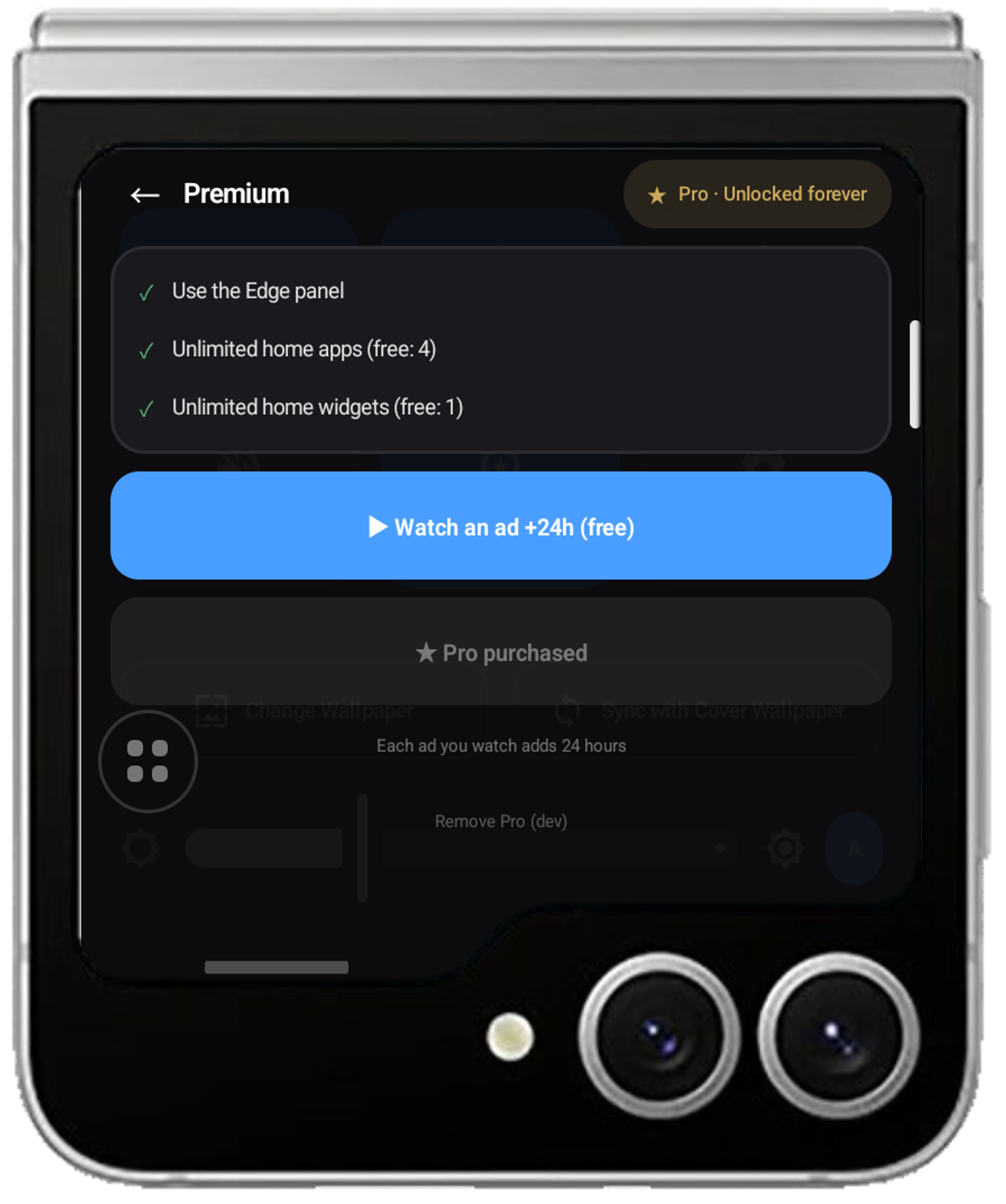
What Premium unlocks
The free version caps how many items you can place on the home screen, and the Slide Panel and main screen mirroring are unavailable. Watching one in-app ad lifts these limits for 24 hours; buying the Pro version lifts them permanently.
| Free | Premium | |
|---|---|---|
| Apps on the home screen | Up to 4 | Unlimited |
| Widgets on the home screen | Up to 1 | Unlimited |
| Slide Panel | Not available | Available |
| Main screen mirroring | Not available | Available |
* Main screen mirroring is experimental and relies on OS behaviour that is not a public API. It may stop working after an OS update.
Each ad you watch adds another 24 hours. Everything not listed above is available on the free version.
Getting started
On first launch, the app walks you through the permissions it needs to run on the cover display (display over other apps, accessibility, and usage access). Follow the on-screen steps and you are ready to go.
Privacy
Lib Launcher stores all data, such as your settings and home screen layout, only on your device. No personal information is sent to our servers. Crash information is recorded only in the app’s private storage area for troubleshooting and is never transmitted externally. Device identifiers may be collected through in-app advertising (Google AdMob). See our Privacy Policy for details.
Deleting your data
The data this app stores on your device (settings, home screen layout and crash logs) is deleted the moment you uninstall the app. None of it is sent to our servers, so there is no need to request deletion.
Advertising data (advertising ID, IP address, app usage and diagnostics) is collected and managed by Google AdMob; we do not retain it. You can reset or delete your advertising ID from Settings > Privacy > Ads on Android.
The name, email address and message you send through our contact form are kept as a record of correspondence for one year, then deleted. To request deletion sooner, write to us from our contact page with “データ削除希望” (data deletion request) as the subject, and include the app name (Lib Launcher) and your contact details. We respond within 2–3 business days and confirm once it is done.
Permissions and how they are used
The following permissions are used so the app can work as a cover display launcher. All of them are used only for on-device processing, and no information obtained through them is sent to our servers or any third party.
Granted during first-time setup
-
Display over other apps
SYSTEM_ALERT_WINDOWUsed to display the overlay (Pill and Smart menus) and the Slide Panel.
-
Usage access
PACKAGE_USAGE_STATSReads on-device app usage in order to show “recent apps”. The information read is never transmitted externally.
Works without granting this
You can launch the app and use the home screen without granting this. Granting it enables the system “recent apps” screen, tapping through the Slide Panel bar, automatic return to the cover display, the notification panel, and touch input during mirroring.
-
Accessibility
Accessibility serviceUsed so the app can act as a launcher on the cover display. There are four purposes.
· Perform actions such as turning off the screen and going back
· Relay a tap to the button underneath when you tap the Slide Panel bar
· Press the “Close all” button in recent apps on your behalf, as it sits where the cover display cannot reach it
· Relay touches on the cover display to the main screen during mirroringTo do this the app looks at the position and type of on-screen buttons, but it never records or stores what is shown on your screen, nor transmits it anywhere.
-
Notification access
Read notificationsUsed to show a notification panel on the cover display. There are three purposes.
· Show the app name, title and text of incoming notifications on the cover display’s notification panel
· Dismiss a notification from the panel, or open the app it came from
· Choose which apps to show or hide, per appNotification content is used only for display, and it is never stored on the device or transmitted off it. The only thing kept on the device is the list of app names you set to hide and the app names that have sent a notification (never the title or text). Lib Launcher’s own notifications never appear in the panel.
Used depending on the feature
-
Modify system settings
WRITE_SETTINGSUsed to change screen brightness and adaptive brightness from Quick Settings. Only display settings are changed; no other settings are read and nothing is transmitted externally.
Required when changing brightness from Quick Settings -
Wi-Fi and Bluetooth status
ACCESS_WIFI_STATEReads whether each feature is on or off so the Quick Settings toggles show the current state. Network names and connected device details are never obtained or transmitted.
No permission prompt is shown -
Screen sharing (main screen mirroring)
FOREGROUND_SERVICE_MEDIA_PROJECTIONUses Android MediaProjection to show the main screen on the cover display. The image is used only for display; it is not recorded, saved or sent off the device.
Android asks for screen-sharing consent each time you start mirroring. Accessibility must also be turned on.
You can grant or revoke permissions such as Accessibility in your device settings. Android asks for screen-sharing consent each time you start mirroring. Features requiring consent cannot be used without it. For how we handle personal information in general, see our Privacy Policy.
Feedback and bug reports are welcome via our contact page.